CU Online Security Code
Accessing Your Security Code

Step 1
On the CU Online Login Page, enter your Username and Password and click the Log In button.
Step 2
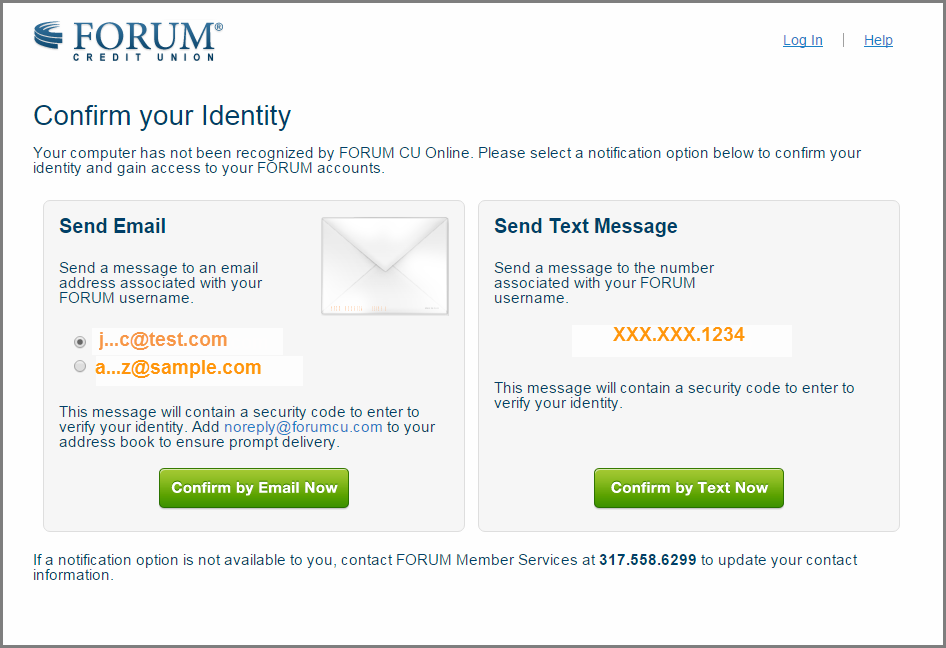
Confirm your identity by choosing to receive your security code via email or text message. Select your preferred method of receiving your code by clicking the “Confirm By” button. Make sure you have your mobile phone or email easily accessible.
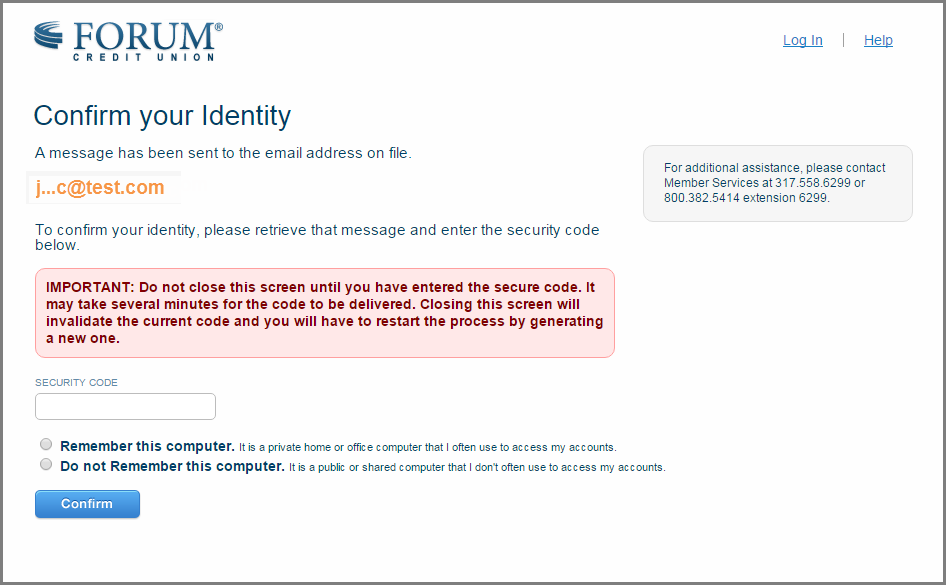
Important: Do not close the screen to retrieve your code. Leave the browser window open while you retrieve the code. You may minimize the screen by clicking the “–“ in the upper right-hand corner. Do not click the red “X.”
Step 3
Once you have your Security Code, enter it on the next screen.
Important: If you are using your personal computer or mobile device, make sure to select “Remember This Computer” before clicking “Confirm.” Then you will not have to perform this procedure the next time you use CU Online. Once you have entered your security code and selected Remember This Computer, click Confirm.