
Online Bill Pay
Bill Pay
Pay bills directly from your checking or savings account using FORUM's Bill Pay. Bill Pay is designed with functionality and flexibility in mind.
Features
- Free for all members
- Schedule check and electronic payments from one screen
- View all payees, upcoming bills, payment history and account balances
- Pay from multiple accounts
- Set system email reminders
- Quickly add a new payee
- Make a payment to any person or company with one click
- Set up recurring payments for bills that are the same each month
- See bill amounts and payment due dates with eBill
- Make charitable donations with a personalized message (in honor of, etc., additional $1.99 fee applies)
Start with one bill or all your bills, but the most important action is to sign up and start using it! Be in control of when bills are paid. You can schedule bills to be paid in advance, so you don't have to log on every time a bill is due.
You can sign up for Bill Pay through FORUM's online banking program, CU Online.
Manage Every Bill From One Secure Place
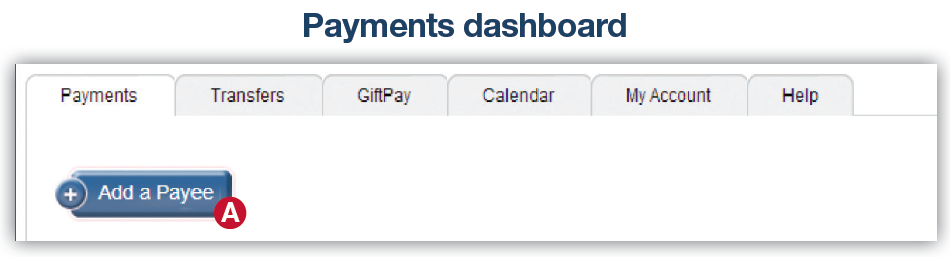
Your Payments dashboard is simple and convenient. You can add payees and make payments with just a few clicks. Here’s how it works.
How To Add A Payee
1. On the Payments dashboard, select “Add a Payee.” (A)
2. On the next screen, select “Pay a Company.”
3. Enter the company’s contact information and your account number.
4. Click “Next,” review payee information and click “Submit” The payee will now appear in your Payments dashboard.
How To Make A Payment
Make a one-time payment
1. Find your payee on the Payments dashboard.
2. Enter the payment amount and date. (A)
3. Click “Submit all payments.” (B)
Set up a recurring payment
1. Find your payee on the Payments dashboard.
2. Select “Make it Recurring.” (C)
3. On the next screen, choose the pay from account, payment date, frequency and first payment date.
4. Click “Submit.”
