
Online Banking
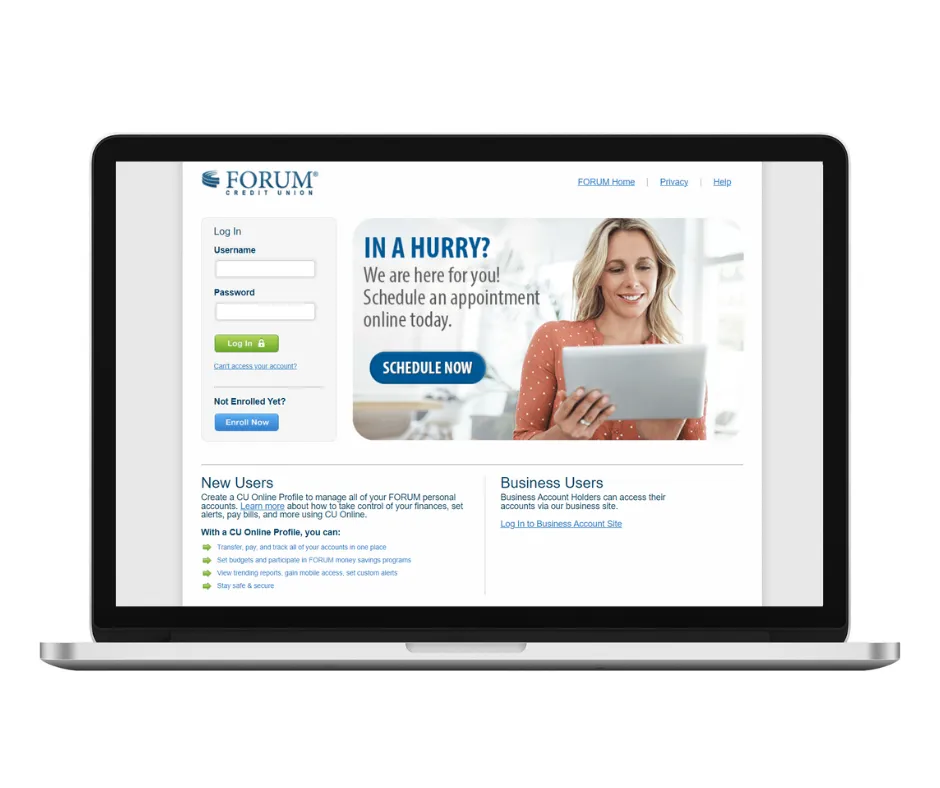
Secure Online Banking
CU Online is FORUM’s secure online banking system that helps you easily manage your accounts, pay bills, transfer money, and receive immediate communication about your accounts. Getting started is quick and allows you to stay in control of your finances effortlessly.
Features
- Receive real-time text or email alerts about your account activity
- Transfer money, make loan payments and monitor all of your accounts in one place
- Pay bills to companies and send money to friends with free Online Bill Pay.
- Receive immediate notifications about your FORUM accounts
- See debit and credit card transactions, including pending transactions
- Create budgets and track spending
- Personalize your accounts by giving them a name (ex: Vacation Fund, Emergency Fund, College Fund)
Enrollment
Enrolling in CU Online is simple! To sign in or setup new access, click the “Enroll Now” button below.
You’ll be taken through a few steps:
- Acceptance of Disclosure
- Personal and Contact Information
- Username and Password Creation
- Verify Identity by Out-of-Wallet Questions
Security
FORUM Credit Union utilizes multi-factor authentication that is based on your username and password, along with a second layer of authentication that is provided by a unique access code issued only to you each time you log in. The code is only valid for a limited time, and we suggest that you have your mobile phone or email easily accessible.
If you are accessing CU Online from a personal computer, you may choose to have CU Online remember the browser you are using to access the site so that you don’t have to perform this procedure the next time you use CU Online.
If you are using a public computer, or prefer to validate your identity each time, you may choose not to have your browser remembered. If you choose not to have your browser remembered, you will receive an email or text with an access code each time you log in. We do not recommend that you choose to have the browser remembered on a public computer.
My Accounts
Yes. You can collapse accounts by clicking on the down arrow in the blue account bar. This will hide the account info and may also shorten your "My Accounts" screen. You can also un-collapse the accounts at any time.
Security
You can choose to have your computer/browser "remembered." Your decision should be made based on whether you are using a private or public computer. If you are using a private computer and opt to have it remembered, logging in from that computer/browser combination will not require a security code on subsequent visits. Please note, if you use another computer and/or browser, you will need to make a choice for that computer/browser to be remembered as well. We do not recommend that you choose to have a public computer remembered.
No. This is a personal preference. If you don't choose to have it "remembered," you will be required to enter a security code at each login.
A number of factors are used to uniquely validate login information. After your computer is remembered, you may be asked to re-authenticate your identity if any of these factors have changed or cannot be determined. This may occur if your browser has been upgraded, you are using a different browser or your browser settings are not set to accept and store cookies. Verify that your browser is not set to have your history and/or cookies deleted upon exit. If this is the case, you'll need to change these browser settings.
Budget
No. You can change this by going to the top right corner, where it states, "Welcome, Your Name." A drop-down menu will appear, and you will want to select "Settings." Under the "User Settings" section, the second-to-last option states, "Changing Landing Page." Click on this and select "My Accounts." You will be directed to the "My Accounts” page first the next time you log in.
Yes and no. The system can auto categorize purchases made on your debit card. However, the system will not auto categorize deposits, transfers, cash withdrawals, checks, ACH transactions, etc.
At this time, the budget cannot remember. We are looking into that functionality as a future enhancement.
You can do this in the history section by clicking on the transaction and choosing the appropriate category.
At this time, customizing categories is not an option. We are looking into that functionality as a future enhancement.
No. The budget is based on only FORUM accounts.
Account History
You can see two years of history, plus the current month.
Each check transaction will show a check icon in the bottom right corner. You can view the image by clicking the transaction and then clicking on the icon.
You can do this by going to the "Other" drop-down menu on the bottom right and selecting "Show Only Checks." This will bring up all checks for the date range selected.
Yes. You can print history from the "Account History Page." There is a "Print History" link in the top right corner of the transactions. This will print all transactions in the date range selected.
Alerts
Alerts are real time. For example: if you set up an alert for all withdrawals, you will receive the alert immediately after the withdrawal hits your account.
FORUM offers the following alerts:
- Balance Summary
- Transaction Summary
- NSF Overdraft Activity
- Balance Falls Below Limit
- Balance Exceeds Limits
- Withdrawal Exceeds Limit
- Deposit Exceeds Limit
- Debit Card Pre-Auth Exceeds Limit
- Loan Payment Date
- Past Due Loan
- CD Maturity Date
- Hold Summary
Loan Information
You can see the details of your loan by going to the "My Accounts" screen and clicking on the "Detail" link in the loan account box. Details will display not only your CU Online customization of the account but also the loan rate, daily interest, Paid YTD and "Today Only" payoff amount.
Stop Payment
Yes. You can do this by hovering over the "Accounts" tab. "Stop Payment" is the last option listed.
User Settings
In order to access your settings within CU Online, hover over your name in the top right of the screen (Welcome, “Your Name.”) This will produce a drop-down menu with "Settings" as your second option.
Access your settings. There, you will see your current email address. Click the blue link to "Change Email Address."
Access your settings. Click the blue link to "Change Mobile Number."
Access your settings. Click the blue link to "Change Password."
Access your settings. From there, you will see an “Account Settings” section that will have the current address and phone numbers we have on file. Click the blue “Change Account Details" link.
Access your settings and scroll down to Account Settings. Click the blue “Change e-Statement Subscription” link. You will then select “Yes” or “No” for e-Statements. You can then select which of your accounts you want these changes to affect by clicking the checkmark boxes next to the account numbers.
Access your settings. Select the blue link to “Change Username.”
Have a question about CU Online, Mobile Apps, Bill Pay, Remote Deposits, Real-Time Alerts and more? Contact FORUM at 317-558-6000 or send a secure email.